I’m (not) a little teapot

A large sculpture of the Utah teapot, given a dark and light grey chequered pattern.
‘Smithfield Utah’ teapot created by Alan Butler, 2021, photographed by John Flanagan and made available under a CC 4.0 licence, via Wikipedia’s page on the Utah teapot.

My friends and I had just left the cinema after seeing Jurassic Park (in 1993, so a long time ago!) when one of the group pointed out that it was a shame the film didn’t have any dinosaurs in. We all argued that it was full of dinosaurs… until the penny dropped. Of course, obviously, the film couldn’t have contained any real dinosaurs, it was all done with animatronics* and (the relatively new at that time) CGI or computer-generated imagery.

The artist Rene Magritte had the same idea with his famous painting called ‘The treachery of images‘ but mostly known as ‘This is not a pipe’ (or ‘Ceci n’est pas une pipe’ in French). His creation represents a pipe but as Magritte said – “could you stuff my pipe? No, it’s just a representation, is it not? So if I had written on my picture “This is a pipe”, I’d have been lying!”

How do you represent something on a computer screen (that’s not actually real) but make it look real?

[*animatronics = models of creatures (puppets) with hidden motors and electronic controls that allow the creatures to move or be moved]

Let’s talk teapots

Computers now assist film and television show makers to add incredible scenes into their productions, that audiences usually can’t tell apart from what’s actually ‘real’ (recorded directly by the camera from live scenes). All these amazing graphics are created by numbers and algorithms inside a computer that encode the instructions for what the computer should display, describing the precise geometry of the item to create. A mathematical formula takes data points and creates what’s known as a series of ‘Bezier curves‘ from them, forming a fluid 3D shape on-screen.

In the 1970s Martin Newell, a computer graphics researcher studying at the University of Utah, was working on algorithms that could display 3D shapes on a screen. He’d already used these to render in 3D the five simple geometric shapes known as the Platonic solids** and he wanted to test his algorithms further with a slightly more complex (but not too much!) familiar object. Over a cup of tea his wife Sandra Newell suggested using their teapot – an easily recognisable object with curved surfaces, a hole formed by the handle and, depending on where you put the light, parts of it can be lit or in shadow.

Martin created on graph paper a representation of the co-ordinates of his teapot (you can see the original here). He then entered those co-ordinates into the computer and a 3D virtual teapot appeared on his screen. Importantly he shared his ‘Utah teapot’ co-ordinates with other researchers so that they could also use the information to test and refine their computer graphic systems.

[**the teapot is also jokingly referred to as the sixth Platonic solid and given the name ‘teapotahedron’]

Bet you’ve seen the Utah teapot before

Over time the teapot became a bit of an in-joke among computer graphic artists and versions of it have appeared in films and TV shows you might have seen. In a Hallowe’en episode of The Simpsons***, Homer Simpson (usually just a 2D drawing) is shown as a 3D character with a small Utah teapot in the background. In Toy Story Buzz Lightyear and Woody pour a cup of tea from a Utah teapot and a teapot template is included in many graphics software packages (sometimes to the surprise of graphic designers who might not know its history!)

[***”The Simpsons Halloween Special VI”, Series 7 Episode 6]

Here’s one I made earlier
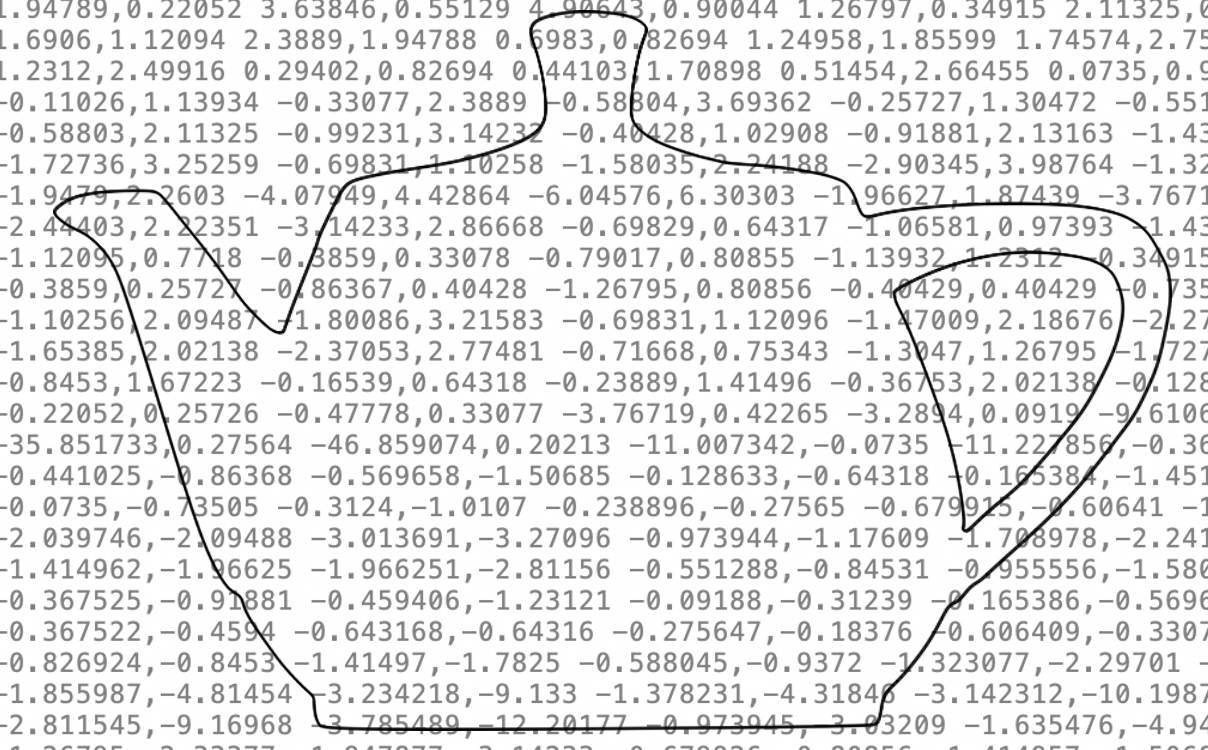
On the left is a tracing I made, of this photograph of a Utah teapot, using Inkscape’s pen tool (which lets me draw Bezier curves). Behind it in grey text is the ‘under the bonnet’ information about the co-ordinates. Those tell my computer screen about the position of the teapot on the page but will also let me resize (scale) the teapot to any size while always keeping the precise shape the same.

Create your own teapot, or other graphics

Why not have a go yourself, Inkscape is free to download (and there are lots of instructional videos on YouTube to show you how to use it). Find out more about Vector Graphics with our Coordinate conundrum puzzles and Vector dot-to-dot puzzles.

Do make yourself a nice cup of tea first though!

Further reading / watching

How Did A Teapot Revolutionise Computer Graphics Animation? (5 August 2024) Academyclass.com

‘Things You Might Not Know’ by Tom Scott on the Utah teapot

Jo Brodie, Queen Mary University of London


Share this post


Part of a series of ‘whimsical fun in computing’ to celebrate April Fool’s (all month long!).

Find out about some of the rather surprising things computer scientists have got up to when they're in a playful mood.

Subscribe to be notified whenever we publish a new post to the CS4FN blog.


This page is funded by EPSRC on research agreement EP/W033615/1.

QMUL CS4FN EPSRC logos

Piet Mondrian and Image Representation

Image after Mondrian by CS4FN

Piet Mondrian was a pioneer of abstract art. He was a Dutch painter, famous for his minimalist abstract art. His series of grid-based paintings consisted of rectangles, some of solid primary colour, others white, separated by thick black lines. Experiment with Mondrian-inspired art like this one of mine, while also exploring different representations of images (as well as playing with maths). Mondrian‘s art is also a way to to learn to program in the image representation language SVG.

We will use this image to give you the idea, but you could use your own images using different image representations, then get others to treat them as puzzles to recreate the originals.


Vector Images

One way to represent an image in a computer is as a vector image. One way to think of what a vector representation is, is that the image is represented as a series of mathematically precise shapes. Another way to think of it is that the image is represented by a program that if followed recreates it. We will use a simple (invented) language for humans to follow to give the idea. In this language a program is a sequence of instructions to be followed in the order given. Each instruction gives a shape to draw. For example,

Rectangle(Red, 3, 6, 2, 4)
A grid showing a square as in the accompanying instructions.
Image by CS4FN

means draw a red rectangle position 3 along and 6 down of size 2 by 4 cm.

Rectangle is the particular instruction giving the shape. The values in the brackets (Red, 3, 6, 2, 4) are arguments. They tell you the colour to fill the shape in, its position as two numbers and its size (two further numbers). The numbers refer to what is called a bounding box – an invisible box that surrounds the shape. You draw the biggest shape that fits in the box. All measurements are in cm. With rectangles the bounding box is exactly the rectangle.

In my language, the position numbers tell you where the top left corner of the bounding box is. The first number is the distance to go along the top of the page from the top left corner. The second number is the distance to go down from that point. The top left corner of the bounding box in the above instruction is 3cm along the page and 6cm down.

The final two numbers give the size of the bounding box. The first number is its width. The second number is its height. For a rectangle, if the two numbers are the same it means draw a square. If they are different it will be a rectangle (a squashed square!)

Here is a program representation of my Mondrian-inspired picture above (in my invented langigae).

1. Rectangle(Black, 0, 0, 1, 15)
2. Rectangle(Black, 1, 0, 14, 1)
3. Rectangle(Black, 15, 0,1, 15)
4. Rectangle(Black, 9, 1, 1, 14)
5. Rectangle(Black, 1, 5, 14, 1)
6. Rectangle(Black, 3, 6, 1, 9)
7. Rectangle(Black, 6, 6, 1, 4)
8. Rectangle(Black, 12, 6, 1, 6)
9. Rectangle(Black, 1, 8, 2, 1)
10. Rectangle(Black, 13, 9, 2, 1)
11. Rectangle(Black, 4, 10, 5, 1)
12. Rectangle(Black, 10, 12, 5, 1)
13. Rectangle(Black, 0, 15, 16, 1)

14. Rectangle(Blue, 1, 1, 8, 4)
15. Rectangle(Red, 7, 6, 2, 4)
16. Rectangle(Red, 10, 13, 5, 2)
17. Rectangle(Yellow, 13, 6, 2, 3)
18. Rectangle(Yellow, 1, 9, 2, 6)
19. Rectangle(White, 10, 1, 5, 4)
20. Rectangle(White, 1, 6, 2, 2)
21. Rectangle(White, 4, 6, 2, 4)
22. Rectangle(White, 10, 6, 2, 6)
23. Rectangle(White, 13, 10, 2, 2)
24. Rectangle(White, 4, 11, 5, 4)

Create your own copy of my picture by following these instructions on squared paper. Then create your own picture and write instructions of it for others to follow to recreate it exactly.


Mondrian in SVG

My pseudocode language above was for people to follow to create drawings on paper, but it is very close to a real industrial standard graphics drawing language called SVG. If you prefer to paint on a computer rather than paper, you can do it by writing SVG programs in a Text Editor and then viewing them in a web browser.

In SVG an instruction to draw a rectangle like my first black one in the full instructions above is just written

<rect fill="black" x="0" y="0" width="1" height="15" />

The instruction starts < and end />. “rect” says you want to draw a rectangle (other commands draw other shapes) and each of the arguments are given with a label saying what they mean, so x=”0″ means this rectangle has x coordinate at 0. A program to draw a Mondrian inspired picture is just a sequence of commands like this. However you need a command at the start to say this is an SVG program and give the size/position of the frame (or viewBox) the picture is in. My Mondrian-inspired picture is 16×16 so my picture has to start:

<svg xmlns="http://www.w3.org/2000/svg" viewBox="0 0 16 16">

An SVG program also has to have an end command.

</svg>

Put all that together and the program to create my picture can be written:

<svg xmlns="http://www.w3.org/2000/svg" viewBox="0 0 16 16">

<rect fill="black" x="0" y="0" width="1" height="15" /> 
<rect fill="black" x="1" y="0" width="14" height="1" />
<rect fill="black" x="15" y="0" width="1" height="15" /> 
<rect fill="black" x="9" y="1" width="1" height="14" /> 
<rect fill="black" x="1" y="5" width="14" height="1" /> 
<rect fill="black" x="3" y="6" width="1" height="9" /> 
<rect fill="black" x="6" y="6" width="1" height="4" /> 
<rect fill="black" x="12" y="6" width="1" height="6" /> 
<rect fill="black" x="1" y="8" width="2" height="1" /> 
<rect fill="black" x="13" y="9" width="2" height="1" /> 
<rect fill="black" x="4" y="10" width="5" height="1" /> 
<rect fill="black" x="10" y="12" width="5" height="1" /> 
<rect fill="black" x="0" y="15" width="16" height="1" />

<rect fill="blue" x="1" y="1" width="8" height="4" /> 
<rect fill="red" x="7" y="6" width="2" height="4" /> 
<rect fill="red" x="10" y="13" width="5" height="2" /> 
<rect fill="yellow" x="13" y="6" width="2" height="3" /> 
<rect fill="yellow" x="1" y="9" width="2" height="6" /> 
<rect fill="white" x="10" y="1" width="5" height="4" /> 
<rect fill="white" x="1" y="6" width="2" height="2" /> 
<rect fill="white" x="4" y="6" width="2" height="4" /> 
<rect fill="white" x="10" y="6" width="2" height="6" /> 
<rect fill="white" x="13" y="10" width="2" height="2" /> 
<rect fill="white" x="4" y="11" width="5" height="4" />

</svg>

Cut and paste this program into a Text editor*. Save it with name mondrian.svg and then just open it in a browser. See below for more on text editors and browsers. The text editor sees the file as just text so shows you the program. A browser sees the file as a program which it executes so shows you the picture.

Now edit the program to explore, save it and open it again.

  • Try changing some of the colours and see what happens.
  • Change the coordinates
  • Once you have the idea create your own picture made of rectangles.

Shrinking and enlarging pictures

One of the advantages of vector graphics is that you can enlarge them (or shrink them) without losing any of the mathematical precision. Make your browser window bigger and your picture will get bigger but otherwise be the same. Doing a transformations like enlargement on the images is just a matter of multiplying all the numbers in the program by some scaling factor. You may have done transformations like this at School in Maths and wondered what the point was. No you know one massively important use. It is the basis of a really flexible way to create and store images. Of course images do not have to be flat, they can be 3-dimensional and the same maths allow you to manipulate 3D computer images ie CGI (computer generated imagery) in films and games.

by Paul Curzon, Queen Mary University of London

An earlier version of this article originally appeared on Teaching London Computing.


*Text Editing Programs and saving files

On a Windows computer you can find notepad.exe using either the search option in the task bar (or Windows+R and start typing notepad…). On a Mac use Spotlight Search (Command+spacebar) to search for TextEdit. Save your file as an SVG using the .svg (not .txt) as the ending and then open it in a browser (on a Mac you can grab the title of the open file and drag and drop it into a web page where it will open as the drawn image).

More on …

Magazines …

Front cover of CS4FN issue 29 - Diversity in Computing

Our Books …


Subscribe to be notified whenever we publish a new post to the CS4FN blog.


This page and talk are funded by EPSRC on research agreement EP/W033615/1.

Ingrid Daubechies: Wiggly lines help catching crime

by Paul Curzon, Queen Mary University of London

from the cs4fn women are here special issue.

Blue and yellow sine wave patterns representing light

Computer scientists rely on maths a lot. As mathematicians devise new mathematical theories and tools, computer scientists turn them into useful programs. Mathematicians who are interested in computing and how to make practical use of their maths are incredibly valuable. Ingrid Daubechies is like that. Her work has transformed the way we store images and much besides. She works on the maths behind digital signal processing – how best to manipulate things like music and images in computers. It boils down to wiggly lines.

Pixel pictures

The digital age is founded on the idea that you can represent signals: whether sound or images, radio waves, or electrical signals, as sequences of numbers. We digitise things by breaking them into lots of small pieces, then represent each piece with a number. As I look out my window, I see a bare winter tree, with a robin singing. If I take a picture with a digital camera, the camera divides the scene into small squares (or pixels) and records the colour for each square as a number. The real world I’m looking at isn’t broken into squares, of course. Reality is continuous and the switch to numbers means some of the detail of the real thing is lost. The more pieces you break it into the more detail you record, but when you blow up a digital image too much, eventually it goes blurry. Reality isn’t fuzzy like that. Zoom in on the real thing and you see ever more detail. The advantage of going digital is that, as numbers, the images can be much more quickly and easily stored, transmitted and manipulated by Photoshop-like programs. Digital signal processing is all about how you store and manipulate real-world things, those signals, with numbers.

Curvy components

There are different ways to split signals up when digitising them. One of the bedrocks of digital signal processing is called Fourier Analysis. It’s based on the idea that any signal can be built out of a set of basic building blocks added together. It’s a bit like the way you can mix any colour of paint from the three primary colours: red, blue and yellow. By mixing them in the right proportions you can get any colour. That means you can record colours by just remembering the amounts of each component. For signals, the building blocks are the pure frequencies in the signal. The line showing a heartbeat as seen on a hospital monitor, say, or a piece of music in a sound editing program, can be broken down into a set of smooth curves that go up and down with a given frequency, and which when added together give you the original line – the original signal. The negative parts of one wave can cancel out positive parts of another just as two ripples meeting on a pond combine to give a different pattern to the originals.

This means you can store signals by recording the collection and strength of frequencies needed to build them. For images the frequencies might be about how rapidly the colours change across the image. An image of say a hazy sunset, where the colours are all similar and change gradually, will then be made of low frequencies with rolling wave components. An image with lots of abrupt changes will need lots of high frequency, more spiky, waves to represent all those sudden changes.

Blurry bits

A pulse signal on a spherical monitor surface
Image by Gerd Altmann from Pixabay 

Now suppose you have taken a picture and it is all a bit blurry. In the set of frequencies that blurriness will be represented by the long rolling waves across the image: the low frequencies. By filtering out those low frequencies, making them less important and making the high frequency building blocks stronger, we can sharpen the image up.

more like keyhole surgery on a signal
than butchering the whole thing.

By filtering in different ways we can have different effects on the image. Some of the most important help compress images. If a digital camera divides the image into fewer pixels it saves memory by storing less data, but you end up with blocky looking pictures. If you instead throw away information by losing some of the frequencies of a Fourier version, the change may be barely noticeable. In fact, drawing on our understanding of how our brains process the world to choose what frequencies to drop we might not see a change in the image at all.

The power of Fourier Analysis is that it allows you to manipulate the whole image in a consistent way, editing a signal by editing its frequency building blocks. However, that power is also a disadvantage. Sometimes you want to have effects that are more local – doing something that’s more like keyhole surgery on a signal than butchering the whole thing.

Wiggly wavelets

That is where wavelets come in. They give a way of focussing on small areas of the signal. The building blocks used with wavelets are not the smooth, forever undulating curves of Fourier analysis, but specially designed functions, ie wiggly lines, that undulate just in a small area – a bit like a single heart beat signal. A ‘mother’ wavelet is combined with variations of it (child wavelets) to make the full set of building blocks: a wavelet family.

Wavelets were perhaps more a curiosity than of practical use to computer scientists, until Ingrid Daubechies came up with compact wavelets that needed only a fixed time to process. The result was a versatile and very practical tool that others have been able to use in all sorts of ways. For example, they give a way to compress images without losing information that matters. This has made a big difference with the FBI’s fingerprint archive, for example. A family of wavelets allows each fingerprint to be represented by just a few wavelets, so a few numbers, rather than the many numbers needed if pixels were stored. The size of the collection takes up 20 times less storage space as wavelets without corrupting the images. That also means it can be sent to others who need it more easily. It matters when each fingerprint would otherwise involve storing or sending 10 Megabytes of data.

People have come up with many more practical uses of Wavelets, from cleaning up old music to classifying stars and detecting earthquakes. Not bad for a wiggly line.

More on …

Related Magazines …


EPSRC supports this blog through research grant EP/W033615/1. 

Making sense of squishiness – 3D modelling the natural world

by Paul Curzon, Queen Mary University of London

Look out the window at the human-made world. It’s full of hard, geometric shapes – our buildings, the roads, our cars. They are made of solid things like tarmac, brick and metal that are designed to be rigid and stay that way. The natural world is nothing like that though. Things bend, stretch and squish in response to the forces around them. That provides a whole bunch of fascinating problems for computer scientists like Lourdes Agapito of Queen Mary, University of London to solve.

Computer scientists interested in creating 3-dimensional models of the world have so far mainly concentrated on modelling the hard things. Why? Because they are easier! You can see the results in computer-animated films like Toy Story, and the 3D worlds like Second Life your avatar inhabits. Even the soft things tend to be rigid.

Lourdes works in this general area creating 3D computer models, but she wants to solve the problems of creating them automatically just from the flat images in videos and is specifically interested in things that deform – the squishy things.

Look out the window and watch the world go by. As you watch a woman walk past you have no problem knowing that you are looking at the same person as you were a second ago – even if she becomes partially hidden as she walks behind the post box and turns to post a letter. The sun goes behind a cloud and the scene is suddenly darker. It starts to rain and she opens an umbrella. You can still recognise her as the same object. Your brain is pulling some amazing tricks to make this seem so mundane. Essentially it is creating a model of the world – identifying all the 3-dimensional objects that you see and tracking them over time. If we can do it, why can’t a computer?

Unlike hard surfaces, deformable ones don’t look the same from one still to the next. You don’t have to just worry about changes in lighting, them being partially hidden, and that they appear different from a different angle. The object itself will be a different shape from one still to the next. That makes it far harder to work out which bits of one image are actually the same as the ones in the next. Lourdes has taken on a seriously hard problem.

Existing vision systems that create 3D objects have made things easier for themselves by using existing models. If a computer already has a model of a cube to compare what it sees with, then spotting a cube in the image stream is much easier than working it out from scratch. That doesn’t really generalise to deformable objects though because they vary too much. Another approach, used by the film industry, is to put highly visible markers on objects so that those markers can be tracked. That doesn’t help if you just want to point a camera out the window at whatever passes by though.

Software from Lourdes’ team creates a model of the human face as it deforms. A looping gif of a man’s face making different expressions next to a cartoon version which copies him. Red dots on his features are mapped to red dots on the cartoon face

Lourdes aim is to be able to point a camera at a deformable object and have a computer vision system be able to create a 3D model simply by analysing the images. No markers, no existing models of what might be there, not even previous films to train it with, just the video itself. So far her team have created a system that can do this in some situations such as with faces as a person changes their expression. Their next goal is to be able to make their system work for a whole person as they are filmed doing arbitrary things. It’s the technical challenge that inspires Lourdes the most, though once the problems of deformable objects are solved there are applications of course. One immediately obvious area is in operating theatres. Keyhole surgery is now very common. It involves a surgeon operating remotely, seeing what they are doing by looking at flat video images from a fibre optic probe inside the body of the person being operated on. The image is flat but the inside of the person that the surgeon is trying to make cuts in is 3-dimensional. It would be far less error prone if what the surgeon was looking at was an accurate 3D model of the video feed rather than just a flat picture. Of course the inside of your body is made of exactly the kind of squishy deformable surfaces that Lourdes is interested in. Get the computer science right and technologies like this will save lives.

At the same time as tackling seriously hard if squishy computer science problems, Lourdes is also a mother of three. A major reason she can fit it all in, as she points out, is that she has a very supportive partner who shares in the childcare. Without him it would be impossible to balance all the work involved in leading a top European research team. It’s also important to get away from work sometimes. Running regularly helps Lourdes cope with the pressures and as we write she is about to run her first half marathon.

Lourdes may or may not be the person who turns her team’s solutions into the applications that in the future save lives in operating theatres, spot suspicious behaviour in CCTV footage or allow film-makers to quickly animate the actions of actors. Whoever does create the applications, we still need people like Lourdes who are just excited about solving the fundamental problems in the first place.


This article was originally published on the CS4FN website in ~2011. You can read more about Women in Computing here.


EPSRC supports this blog through research grant EP/W033615/1.

Recognising (and addressing) bias in facial recognition tech #BlackHistoryMonth

By Jo Brodie and Paul Curzon, Queen Mary University of London

A unit containing four sockets, 2 USB and 2 for a microphone and speakers.
Happy, though surprised, sockets Photo taken by Jo Brodie in 2016 at Gladesmore School in London.

Some people have a neurological condition called face blindness (also known as ‘prosopagnosia’) which means that they are unable to recognise people, even those they know well – this can include their own face in the mirror! They only know who someone is once they start to speak but until then they can’t be sure who it is. They can certainly detect faces though, but they might struggle to classify them in terms of gender or ethnicity. In general though, most people actually have an exceptionally good ability to detect and recognise faces, so good in fact that we even detect faces when they’re not actually there – this is called pareidolia – perhaps you see a surprised face in this picture of USB sockets below.

How about computers? There is a lot of hype about face recognition technology as a simple solution to help police forces prevent crime, spot terrorists and catch criminals. What could be bad about being able to pick out wanted people automatically from CCTV images, so quickly catch them?

What if facial recognition technology isn’t as good at recognising faces as it has sometimes been claimed to be, though? If the technology is being used in the criminal justice system, and gets the identification wrong, this can cause serious problems for people (see Robert Williams’ story in “Facing up to the problems of recognising faces“).

“An audit of commercial facial-analysis tools
found that dark-skinned faces are misclassified
at a much higher rate than are faces from any
other group. Four years on, the study is shaping
research, regulation and commercial practices.”

The unseen Black faces of AI algorithms
(19 October 2022) Nature

In 2018 Joy Buolamwini and Timnit Gebru shared the results of research they’d done, testing three different commercial facial recognition systems. They found that these systems were much more likely to wrongly classify darker-skinned female faces compared to lighter- or darker-skinned male faces. In other words, the systems were not reliable. (Read more about their research in “The gender shades audit“).

“The findings raise questions about
how today’s neural networks, which …
(look for) patterns in huge data sets,
are trained and evaluated.”

Study finds gender and skin-type bias
in commercial artificial-intelligence systems
(11 February 2018) MIT News

Their work has shown that face recognition systems do have biases and so are not currently at all fit for purpose. There is some good news though. The three companies whose products they studied made changes to improve their facial recognition systems and several US cities have already banned the use of this tech in criminal investigations. More cities are calling for it too and in Europe, the EU are moving closer to banning the use of live face recognition technology in public places. Others, however, are still rolling it out. It is important not just to believe the hype about new technology and make sure we do understand their limitations and risks.

More on

Further reading

More technical articles

• Joy Buolamwini and Timnit Gebru (2018) Gender Shades: Intersectional Accuracy Disparities in Commercial Gender Classification, Proceedings of Machine Learning Research 81:1-15. [EXTERNAL]
The unseen Black faces of AI algorithms (19 October 2022) Nature News & Views [EXTERNAL]


See more in ‘Celebrating Diversity in Computing

We have free posters to download and some information about the different people who’ve helped make modern computing what it is today.

Screenshot showing the vibrant blue posters on the left and the muted sepia-toned posters on the right

Or click here: Celebrating diversity in computing


EPSRC supports this blog through research grant EP/W033615/1.

Lego computer science: compression algorithms

Continuing a series of blogs on what to do with all that lego scattered over the floor: learn some computer science…

A giraffe image made of coloured squares
A giraffe as a pixel image.
Colour look-up table
Black 0
Blue 1
Yellow 2
Green 3
Brown 4
Image by Paul Curzon

We saw in the last post how images are stored as pixels – the equivalent of square or round lego blocks of different colours laid out in a grid like a mosaic. By giving each colour a number and drawing out a gird of numbers we give ourself a map to recreate the picture from. Turning that grid of numbers into a list (and knowing the size of the rectangle that is the image) we can store the image as a file of numbers, and send it to someone else to recreate.

Of course, we didn’t really need that grid of numbers at all as it is the list we really need. A different (possibly quicker) way to create the list of numbers is work through the picture a brick at a time, row by row and find a brick of the same colour. Then make a long line of those bricks matching the ones in the lego image, keeping them in the same order as in the image. That long line of bricks is a different representation of the image as a list instead of as a grid. As long as we keep the bricks in order we can regenerate the image. By writing down the number of the colour of each brick we can turn the list of bricks into another representation – the list of numbers. Again the original lego image can be recreated from the numbers.

7 blue squares (1) a green square (3) 6 blue squares (1) 2 green suares (3) ...
The image as a list of bricks and numbers
Colour look-up table: Black 0: Blue 1: Yellow 2: Green 3: Brown 4
Image by Paul Curzon

The trouble with this is for any decent size image it is a long list of numbers – made very obvious by the very long line of lego bricks now covering your living room floor. There is an easy thing to do to make them take less space. Often you will see that there is a run of the same coloured lego bricks in the line. So when putting them out, stack adjacent bricks of the same colour together in a pile, only starting a new pile if the bricks change colour. If eventually we get to more bricks of the original colour, they start their own new pile. This allows the line of bricks to take up far less space on the floor. (We have essentially compressed our image – made it take less storage space, at least here less floor space).

A histogram of the squares
7x1 1 x3 6x1 ...

Image by Paul Curzon

Now when we create the list of numbers (so we can share the image, or pack all the lego away but still be able to recreate the image), we count how many bricks are in each pile. We can then write out a list to represent the numbers something like 7 blue, 1 green, … Of course we can replace the colours by numbers that represent them too using our key that gives a number to each colour (as above).

If we are using 1 to mean blue and the line of bricks starts with a pile of seven black bricks then write down a pair of numbers 7 1 to mean “a pile of seven blue bricks”. If this is followed by 1 green bricks with 3 being used for green then we next write down 1 3, to mean a pile of 1 green bricks and so on. As long as there are lots of runs of bricks (pixels) of the same colour then this will use far less numbers to store than the original:

7 1 1 3 6 1 2 3 1 1 1 2 3 1 2 3 2 2 3 1 2 3 …

We have compressed our image file and it will now be much quicker to send to a friend. The picture can still be rebuilt though as we have not lost any information at all in doing this (it is called a lossless data compression algorithm). The actual algorithm we have been following is called run-length encoding.

Of course, for some images, it may take more not less numbers if the picture changes colour nearly every brick (as in the middle of our giraffe picture). However, as long as there are large patches of similar colours then it will do better.

There are always tweaks you can do to algorithms that may improve the algorithm in some circumstances. For example in the above we jumped back to the start of the row when we got to the end. An alternative would be to snake down the image, working along the adjacent rows in opposite directions. That could improve run-length encoding for some images because patches of colour are likely the same as the row below, so this may allow us to continue some runs. Perhaps you can come up with other ways to make a better image compression algorithm

Run-length encoding is a very simple compression algorithm but it shows how the same information can be stored using a different representation in a way that takes up less space (so can be shared more quickly) – and that is what compression is all about. Other more complex compression algorithms use this algorithm as one element of the full algorithm.

Activities

Make this picture in lego (or colouring in on squared paper or in a spreadsheet if you don’t have the lego). Then convert it to a representation consisting of a line of piles of bricks and then create the compressed numbered list.

A pixelated pictures of a camel by a tree in sand dunes
An image of a camel to compress: Colour look-up table: Black 0: Blue 1: Yellow 2: Green 3: Brown 4
Image by Paul Curzon

Make your own lego images, encode and compress them and send the list of numbers to a friend to recreate.


More on …

This post was funded by UKRI, through grant EP/K040251/2 held by Professor Ursula Martin, and forms part of a broader project on the development and impact of computing.

Lego Computer Science

Part of a series featuring featuring pixel puzzles,
compression algorithms, number representation,
gray code, binary, logic and computation.

QMUL CS4FN EPSrC logos

Lego computer science: pixel pictures

by Paul Curzon, Queen Mary University of London

It is now after Christmas. You are stuffed full of turkey, and the floor is covered with lego. It must be time to get back to having some computer science fun, but could the lego help? As we will see you can explore digital images, cryptography, steganography, data compression, models of computing, machine learning and more with lego (and all without getting an expensive robot set which is the more obvious way to learn computer science with lego though you do need lots of lego). Actually you could also do it all with other things that were in your stocking like a bead necklace making set and probably with all that chocolate, too.

First we are going to look at understanding digital images using lego (or beads or …)

Raster images

Digital images come in two types: raster (or bitmap) images and vector images. They are different kinds of image representation. Lego is good for experimenting with the former through pixel puzzles. The idea is to make mosaic-like pictures out of a grid of small coloured lego. Lego have recently introduced a whole line of sets called Lego Art should you want to buy rather amazing versions of this idea, and you can buy an “Art Project” set that gives you all the bits you need to make your own raster images. You can (in theory at least) make it from bits and pieces of normal lego too. You do need quite a lot though.

Raster images are the basic kind of digital image as used by digital cameras. A digital image is split into a regular grid of small squares, called pixels. Each pixel is a different colour.

To do it yourself with normal lego you need, for starters, to collect lots of the small circle or square pieces of different colours. You then need a base to put them on. Either use a flat plate piece if you have one or make a square base of lego pieces that is 16 by 16. Then, filling the base completely with coloured pieces to make a mosaic-like picture. That is all a digital image really is at heart. Each piece of lego is a pixel. Computer images just have very tiny pieces, so tiny that they all merge together.

Here is one of our designs of a ladybird.

A ladybird image made of pixels
A pixel image of a ladybird
Image by Paul Curzon

The more small squares you have to make the picture, the higher the resolution of the image With only 16 x 16 pixels we have a low resolution image. If you only have enough lego for an 8×8 picture then you have lower resolution images. If you are lucky enough to have a vast supply of lego then you will be able to make higher resolution, so more accurate looking images.

Lego-by-numbers

Computers do not actually store colours (or lego for that matter). Everything is just numbers. So the image is stored in the computer as a grid of numbers. It is only when the image is displayed it is converted to actual colours. How does that work. Well you first of all need a key that maps colours to numbers: 0 for black, 1 for red and so on. The number of colours you have is called the colour depth – the more numbers and linked colours in your key, the higher the colour depth. So the more different coloured lego pieces you were able to collect the larger your colour depth can be. Then you write the numbers out on squared paper with each number corresponding to the colour at that point in your picture. Below is a version for our ladybird…

A grid of numbers representing colours
The number version of our ladybird picture
Image by Paul Curzon

Now if you know this is a 16×16 picture then you can write it out (so store it) as just a list of numbers, listed one row after another instead: [5,5,4,4,…5,5,0,4,…4,4,7,2] rather than bothering with squared paper. To be really clear you could even make the first two numbers the size of the grid: [16,16,5,5,4,4,…5,5,0,4,…4,4,7,2]

That along with the key is enough to recreate the picture which has to be either agreed in advance or sent as part of the list of numbers.

You can store that list of numbers and then rebuild the picture anytime you wish. That is all computers are doing when they store images where the file storing the numbers is called an image file.

A computer display (or camera display or digital tv for that matter) is just doing the equivalent of building a lego picture from the list of numbers every time it displays an image, or changes an old one for something new. Computers are very fast at doing this and the speed they do so is called the frame rate – how many new pictures or frames they can show every second. If a computer has a frame rate of 50 frames per second, then it as though it can do the equivalent of make a new lego image from scratch 50 times every second! Of course it is a bit easier for a computer as it is just sending instructions to a display to change the colour shown in each pixels position rather than actually putting coloured lego bricks in place.

Sharing Images

Better still you can give that list of numbers to a friend and they will be able to rebuild the picture from their own lego (assuming they have enough lego of the right colours of course). Having shared your list of numbers, you have just done the equivalent of sending an image over the internet from one computer to another. That is all that is happening when images are shared, one computer sends the list of numbers to another computer, allowing it to recreate a copy of the original. You of course still have your original, so have not given up any lego.

So lego can help you understand simple raster computer images, but there is lots more you can learn about computer science with simple lego bricks as we will see…


More on …


This post was funded by UKRI, through grant EP/K040251/2 held by Professor Ursula Martin, and forms part of a broader project on the development and impact of computing.

Lego Computer Science

Part of a series featuring featuring pixel puzzles,
compression algorithms, number representation,
gray code, binary and computation.

QMUL CS4FN EPSrC logos