On April Fool’s Day in 2002 Google ‘admitted’ to its users that the reason their web search results appeared so quickly and were so accurate was because, rather than using automated processes to grab the best result, Google was actually using a bank of pigeons to select the best results. Millions of pigeons viewing web pages and pecking picking the best one for you when you type in your search question. Pretty unlikely, right?
In a rather surprising non-April Fool twist some researchers decided to test out how well pigeons can distinguish different types of information in hospital photographs.
Letting the pigeons learn from training data They trained pigeons by getting them to view medical pictures of tissue samples taken from healthy people as well as pictures taken from people who were ill. The pigeons had to peck one of two coloured buttons and in doing so learned which pictures were of healthy tissue and which were diseased. If they pecked the correct button they got an extra food reward.
Seeing if their new knowledge is ‘generalisable’ (can be applied to unfamiliar images) The researchers then tested the pigeons with a fresh set of pictures, to see if they could apply their learning to pictures they’d not seen before. Incredibly the pigeons were pretty good at separating the pictures into healthy and unhealthy, with an 80 per cent hit rate. Doctors and pathologists* probably don’t have to worry too much about pigeons stealing their jobs though as the pigeons weren’t very good at the more complex cases. However this is still useful information. Researchers think that they might be able to learn something, about how humans learn to distinguish images, by understanding the ways in which pigeons’ brains and memory works (or don’t work). There are some similarities between pigeons’ and people’s visual systems (the ways our eyes and brains help us understand an image).
[*pathology means the study of diseases. A pathologist is a medical doctor or clinical scientist who might examine tissue samples (or images of tissue samples) to help doctors diagnose and treat diseases.]
How well can you categorise?
This is similar to a way that some artificial intelligences work. A type of machine learning called supervised learning gives an artificial intelligence system a batch of photographs labelled ‘A’, e.g. cats, and a different batch of photographs labelled ‘B’, e.g. dogs. The system makes lots of measurements of all the pictures within the two categories and can use this information to decide if a new picture is ‘CAT’ or ‘DOG’ and also how confident it is in saying which one.
Can pigeons tell art apart?
Pigeons were also given a button to peck and shown artworks by Picasso or Monet. At first they’d peck the button randomly but soon learned that they’d get a treat if they pecked at the same time they were shown a Picasso. When a Monet appeared they got no treat. After a while they learned to peck when they saw the Picasso artworks and not peck when shown a Monet. But what happened if they were shown a Monet or Picasso painting that they hadn’t seen before? Amazingly they were pretty good, pecking for rewards when the new art was by Picasso and ignoring the button when it was a new Monet. Art critics can breathe a sigh of relief though. If the paintings were turned upside down the pigeons were back to square one and couldn’t tell them apart.
“I’m in a choir”. “Really, what do you sing?” “I did a blackbird last week, but I think I’m going to be woodpecker today, I do like a robin though!”
This is no joke! Marcus Coates a British artist, got up very early, and working with a wildlife sound recordist, Geoff Sample, he used 14 microphones to record the dawn chorus over lots of chilly mornings. They slowed the sounds down and matched up each species of bird with different types of human voices. Next they created a film of 19 people making bird song, each person sang a different bird, in their own habitats, a car, a shed even a lady in the bath! The 19 tracks are played together to make the dawn chorus. See it on YouTube below.
Marcus didn’t stop there, he wrote a new bird song score. Yes, for people to sing a new top ten bird hit, but they have to do it very slowly. People sing ‘bird’ about 20 times slower than birds sing ‘bird’ ‘whooooooop’, ‘whooooooop’, ‘tweeeeet’. For a special performance, a choir learned the new song, a new dawn chorus, they sang the slowed down version live, which was recorded, speeded back up and played to the audience, I was there! It was amazing! A human performance, became a minute of tweeting joy. Close your eyes and ‘whoop’ you were in the woods, at the crack of dawn!
Computationally thinking a performance
Computational thinking is at the heart of the way computer scientists solve problems. Marcus Coates, doesn’t claim to be a computer scientist, he is an artist who looks for ways to see how people are like other animals. But we can get an idea of what computational thinking is all about by looking at how he created his sounds. Firstly, he and wildlife sound recordist, Geoff Sample, had to focus on the individual bird sounds in the original recordings, ignore detail they didn’t need, doing abstraction, listening for each bird, working out what aspects of bird sound was important. They looked for patterns isolating each voice, sometimes the bird’s performance was messy and they could not hear particular species clearly, so they were constantly checking for quality. For each bird, they listened and listened until they found just the right ‘slow it down’ speed. Different birds needed different speeds for people to be able to mimic and different kinds of human voices suited each bird type: attention to detail mattered enormously. They had to check the results carefully, evaluating, making sure each really did sound like the appropriate bird and all fitted together into the Dawn Chorus soundscape. They also had to create a bird language, another abstraction, a score as track notes, and that is just an algorithm for making sounds!
Fun to try
Use your computational thinking skills to create a notation for an animal’s voice, a pet perhaps? A dog, hamster or cat language, what different sounds do they make, and how can you note them down. What might the algorithm for that early morning “I want my breakfast” look like? Can you make those sounds and communicate with your pet? Or maybe stick to tweeting? (You can follow @cs4fn on Twitter too).
Enjoy the slowed-down performance of this pet starling which has added a variety of mimicked sounds to its song repertoire.
Today is the final post in our CS4FN Christmas Computing Advent Calendar – it’s been a lot of fun rummaging in the CS4FN back catalogue, and also finding out about some new things to write about.
Image drawn and digitised by Jo Brodie.
Each day we’ve published a blog post about computing with the theme suggested by the picture on the advent calendar’s ‘door’. Our first picture was a woolly jumper so the accompanying post was about the links between knitting and coding, the door with a picture of a ‘pair of mittens’ on led to a post about pair programming and gestural gloves, a patterned bauble to an article about printed circuit boards, and so on. It was fun coming up with ideas and links and we hope it was fun to read too.
We hope you enjoyed the series of posts (click on any of the Christmas trees in this post to see them all) and that you are already having a very Merry Christmas.
And on to today’s post which is inspired by the picture of a Christmas Tree, so it’ll be a fairly botanically-themed post. The suggestion for this post came from Prof Ursula Martin of Oxford University, who told us about the ‘wood computer’.
It’s a Christmas tree! Image drawn and digitised by Jo Brodie.
The Wood Computer
by Jo Brodie, QMUL.
Other than asking someone “do you know what tree this is?” as you’re out enjoying a nice walk and coming across an unfamiliar tree, the way of working out what that tree is would usually involve some sort of key, with a set of questions that help you distinguish between the different possibilities. You can see an example of the sorts of features you might want to consider in the Woodland Trust’s page on “How to identify trees“.
Depending on the time of year you might consider its leaves – do they have stalks or not, do they sit opposite from each other on a twig or are they diagonally placed etc. You can work your way through leaf colour, shape, number of lobes on the leaf and also answer questions about the bark and other features of your tree. Eventually you narrow things down to a handful of possibilities.
What happens if the tree is cut up into timber and your job is to check if you’re buying the right wood for your project. If you’re not a botanist the job is a little harder and you’d need to consider things like the pattern of the grain, the hardness, the colour and any scent from the tree’s oils.
Historically, one way of working out which piece of timber was in front of you was to use a ‘wood computer’ or wood identification kit. This was prepared (programmed!) from a series of index cards with various wood features printed on all the cards – there might be over 60 different features.
Every card had the same set of features on it and a hole punched next to every feature. You can see an example of a ‘blank’ card below, which has a row of regularly placed holes around the edge. This one happens to be being used as a library card rather than a wood computer (though if we consider what books are made of…).
Image of an edge-notched card (actually being used as a library card though), from Wikipedia. Edge-notched Card (without the edges notched) by Daniel MacKay, image has been released into the public domain (CC0).
I bet you can imagine inserting a thin knitting needle into any of those holes and lifting that card up – in fact that’s exactly how you’d use the wood computer. In the tweet below you can see several cards that made up the wood computer.
This is a practical 'wood identification kit'.
The manual multi-access key is poked through different holes on the identification cards, which represent specific characteristics of the wood, to help determine which one you’re handling. pic.twitter.com/CLNkFyRlMJ
One card was for one tree or type of wood and the programmer would add notch the hole next to features that particularly defined that type. For example you’d notch ‘has apples’ for the apple tree card but leave it as an intact hole on the pear tree card. If a particular type of timber had fine grained wood they’d add the notch to the hole next to “fine-grained”. The cards were known, not too surprisingly, as edge-notched cards.
You can see what one looks like here with some notches cut into it. You might have spotted how knitting needles can help you in telling different woods apart.
Holes and notches
Edge-notched card overlaid on black background, with two rows of holes. On the top a hole in the first row is notched, on the right hand side two holes are notched. Image from Wikipedia. Randlochkarte mit zwei Schlitzungen (handgemalt) [Perforated card with two slots (hand-painted)] by Peter Frankfurt, image has been released into the public domain (CC0).
Each card would end up with a slightly different pattern of notched holes, and you’d end up with lots of cards that are slightly different from each other.
Example ‘wood computer’. At the end of your search (to find out which tree your piece of wood came from) you are left with two cards for fine-grained wood. If your sample has a strong scent then it’s likely it’s the tree in the card on the right (though you could arrive at the same conclusion by using the differences in colour too). The card at the top is the blank un-notched card.
How it works
Your wood computer is basically a stack of cards, all lined up and that knitting needle. You pick a feature that your tree or piece of wood has and put your needle through that hole, and lift. All of the cards that don’t have that feature notched will have an un-notched hole and will continue to hang from your knitting needle. All of the cards that contain wood that do have that feature have now been sorted from your pile of cards and are sitting on the table.
You can repeat the process several times to whittle (sorry!) your cards down by choosing a different feature to sort them on.
The advantage of the cards is that they are incredibly low tech, requiring no electricity or phone signal and they’re very easy to use without needing specialist botanical knowledge.
The word ‘card’ features over 30 times on this page and the word Christmas over 10 times but this post isn’t actually about Christmas cards! We hope you had plenty of those 🙂 Merry Christmas.
Teachers: we have a classroom sorting activity that uses the same principles as the wood computer. Download our Punched Card Searching PDF from our activity page.
The creation of this post was funded by UKRI, through grant EP/K040251/2 held by Professor Ursula Martin, and forms part of a broader project on the development and impact of computing.
We are nearly coming to the end of our CS4FN Christmas Computing Advent Calendar with one more post to come tomorrow. If you’ve missed any you can catch up by scrolling to the end and click on the Christmas Tree in the panel for the complete list so far.
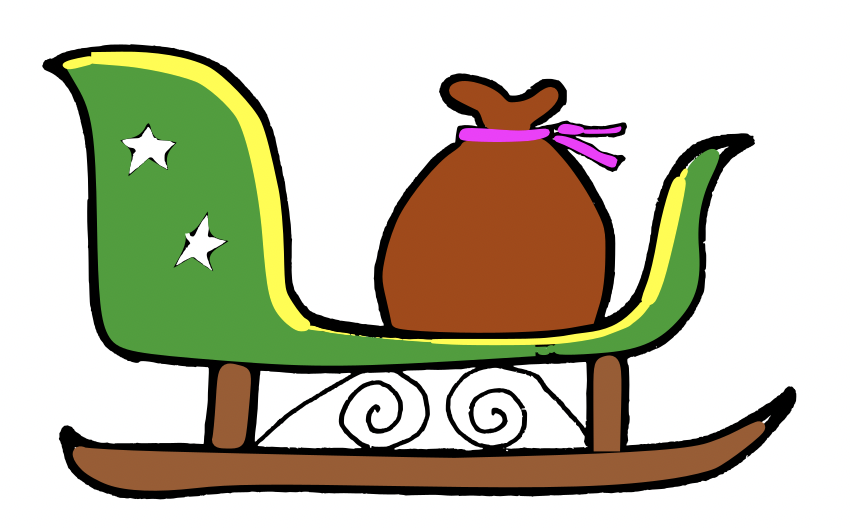
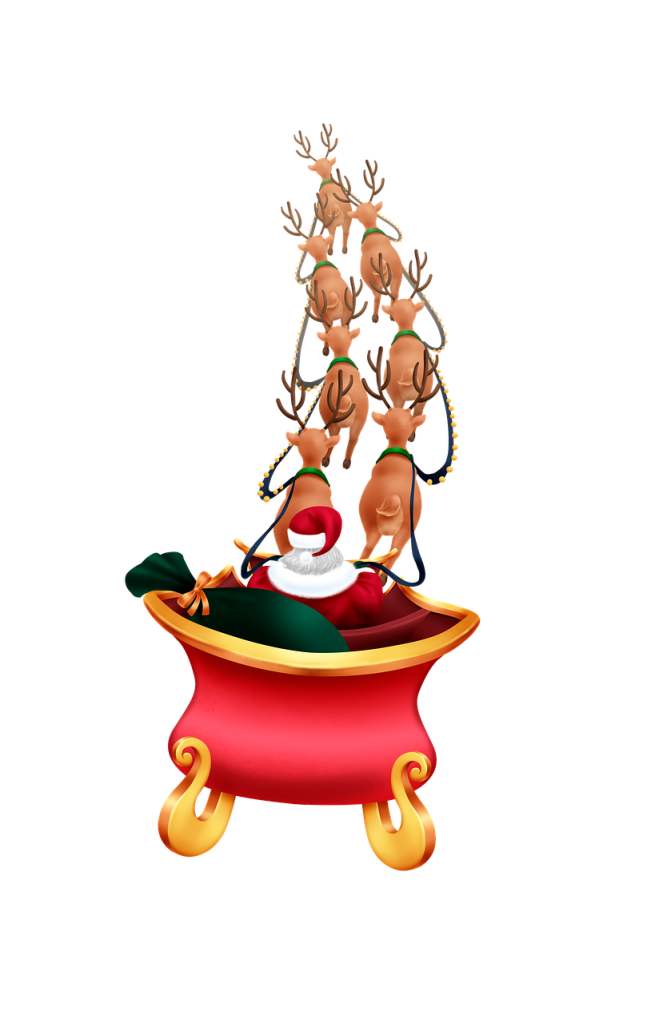
Today’s advent calendar window shows Father Christmas’ sleigh with a sack full of presents ready for delivery. Today’s theme is about the many different online ways that you can now ‘track’ his movements around the world. You may be able to see (cloud permitting) his sleigh ‘in person’ as it flies over. In reality it’s International Space Station (ISS) whizzing past – but other interpretations are available 🙂
Visit this page https://www.astroviewer.net/iss/en/observation.php and type in your city to see when and where you might spot the ISS. On Christmas Day 2025 the ISS will pass over the South of England from around 6.17am to 6.22am, reaching its highest point at around 6.19am, so you’ll have to get up early!
You can track Father Christmas as he dashes through the sky, delivering presents. Image drawn and digitised by Jo Brodie.
In 1955, so the story goes, an American department store published a newspaper advert with a phone number for children to call so that they could speak to Father Christmas. Unfortunately a misprint meant that the wrong number was given and instead people found they were talking to the US military’s Air Defense Command (now called North America Air Defense Command or NORAD).
Realising the mistake, but also spotting a great public relations opportunity, the team capitalised on this and began to make an annual event of it.
NORAD uses radar and geosynchronous* satellites to monitor Father Christmas. The satellites are able to detect infrared (heat) radiation and apparently Rudolph’s red nose gives quite a strong signal. This data is then shared with everyone via their website, though they don’t know in advance what route he’ll take.
If you’re visiting the website hover over the different bits of the picture as there are linked activities and extra information too.
*geo = Earth, synchronous = matching / following (like when you sync devices), the satellite follows the Earth’s orbit and is always above the same spot, so effectively (from the Earth’s point of view) the satellite appears not to move (it is moving but it follows the Earth’s rotation).
FlightRadar24 is a great website for telling you the answer to “what was that aircraft that’s just flown by?” It tracks the flight of aircraft all over the globe in real time, using a signal transmitted by the aircraft’s beacon (called a transponder) which announces where it is. Father Christmas’ sleigh has its own transponder too which is transmitting its location to receivers around the world.
An aircraft, or Santa’s sleigh, gets information about where it is from a GPS satellite (very similar to using a maps app on a smartphone and it telling you where you are and whether you should go left or right) and it then transmits this location info, along with other data, through its transponder.
There are thousands of receivers here on Earth, many of them in people’s homes and gardens (you can even apply to host a receiver antenna, or build your own with a Raspberry Pi) and whenever Santa’s sleigh passes over one of these ‘ground stations’ its signal is picked up and collected by FlightRadar24. The receivers are in different places so they are receiving the same signal at slightly different times and this information can be used to work out (by triangulation) how fast the sleigh is moving and in what direction.
Google’s Santa Tracker has lots of games to play while you wait for Santa and his sleigh to take flight, including Code Boogie where you can try and program some dancing elves. You move little blocks (a bit like Scratch) to copy the dance moves and, if you get it right, it will show you the underlying JavaScript code.
Dave Holmes, a developer who works at Google and who works on the Santa Tracker project says “Santa Tracker launched in 2004, and has been an important project at Google ever since. While there’s a small core team dedicated to Santa, up to 20 or so Googlers volunteer to help make it happen every year, and it’s become a true community effort. It’s also a way for our developers to try things and see what Google products can do … I like to say that everything I’ve learned at Google, I learned from Santa.”
Google has also added some ‘Easter eggs‘ to its search page – try typing in Christmas or where is Santa to https://www.google.com/. You can also colour in some images online at their Christmas-themed Art Coloring Book, from Google’s Arts and Culture.
Back in the early 1990s email was very new but right from the start people used it to send each other amusing things. One of them was a rather literal consideration of the physics of a sleigh that is laden with gifts and a traditionally overweight Santa, led by a team of reindeer moving at unlikely speeds (after all Father Christmas has to get around the entire world to deliver presents, in just one day). The author (unknown) began –
“No known species of reindeer can fly. BUT there are 300,000 species of living organisms yet to be classified, and while most of these are insects and germs, this does not COMPLETELY rule out flying reindeer which only Santa has ever seen.”
But then goes on to point out that such a gift-delivery system would be working far beyond normal levels and would probably end in disaster, suggesting that –
“In short, they will burst into flame almost instantaneously, exposing the reindeer behind them, and create deafening sonic booms in their wake. The entire reindeer team will be vaporized within 4.26 thousandths of a second. Santa, meanwhile, will be subjected to centrifugal forces 17,500.06 times greater than gravity. A 250-pound Santa (which seems ludicrously slim) would be pinned to the back of his sleigh by 4,315,015 pounds of force.”
Fortunately Father Christmas has his own magic, meaning that we don’t need to worry too much about him disobeying the laws of physics. But he and his reindeer really deserve those cookies, milk and carrots!
The creation of this post was funded by UKRI, through grant EP/K040251/2 held by Professor Ursula Martin, and forms part of a broader project on the development and impact of computing.
This short post, part of our CS4FN Christmas Computing Advent Calendar, is to let you know that you may be able to watch Santa’s sleigh as it goes overhead on Christmas Day (or Christmas Eve). It doesn’t matter if you believe in Father Christmas or not, whether you’ll actually see his sleigh really only depends on how cloudy it is! In fact Santa’s sleigh follows the orbit of the International Space Station (ISS) remarkably closely…
Santa’s sleigh: Father Christmas will soon be tethering the sack of gifts to the sleigh with very strong straps (not shown) because he’ll be flying very fast and very high.
In the unlikely event that any small children are awake unusually early on Christmas Day and it’s not cloudy then you might be able to catch a bright light passing overhead at around 05:54 in the morning as Father Christmas zips around the world delivering presents at incredible speeds.
The timings below are for London, UK but you can enter your own city and see if Father Christmas will be passing near you, and when.
Day
Date
Time
Visible
Max Height
Appears
Disappears
Sun
24 Dec
6:40 am
6 min
86°
21° above W
10° above E
Mon
25 Dec
5:54 am
4 min
88°
82° above WSW
10° above E
See ‘How to spot the station‘ and find out what ‘max height’ and ‘appears’ means in context. You can also use NASA’s Spot The Station app for phones.
Our CS4FN Christmas Computing Advent Calendar has now been running for 23 days! That’s one post every single day, matching a computing-themed blog post to the image on the front of the advent calendar. If you’d like to see how well we’ve managed this please scroll to the end where you can find all of our previous Advent Calendar posts.
Today’s picture is of Father Christmas who, we’ll assume, is re-checking his list and packing his sleigh ready for a long flight around the world, where he’ll be ‘accepting cookies’ as he goes.
Father Christmas, about to do his pre-flight checks (twice). Image drawn and digitised by Jo Brodie.
As the song implies, he takes particular care over his list checking it twice to make sure there are no mistakes. In that respect he’s a little like computer scientists who put systems in place to make sure that when they send data to someone else that person can tell quickly if it’s arrived correctly. Today’s post is about reducing errors (and trying to avoid introducing errors). (We don’t know what data collection methods Father Christmas used though.)
1. Reducing errors: check digits
Once I’d reached the age of about 12 my parents started to let me go by myself to my friend’s house which was about a 15 minute walk away. When I arrived I would use my friend’s parents’ landline phone (with permission) to “give 3 rings” to my parents. This meant that I rang my parents’ number – but they didn’t answer, instead they let the phone ring three times and then I hung up. That way they knew the call was from me (our pre-agreed code) but no-one was charged to make or receive a call and they knew I’d arrived safely. (Obviously if the phone rang for longer they’d know it was probably from someone else and answer it).
Computer scientists also use an agreed code when sending data to another person or computer over a network – they want to make sure their data arrived safely too. Data is* sent as binary 1s and 0s and sometimes there’s a scrambling error in the transmission resulting in a 1 arriving as a 0, or a 0 arriving as a 1. A neat way to find out if this might have happened is to double-check what it was supposed to be, by using something called a parity bit(parity means ‘equal’) or check digit. This digit is added to each block of data you’re sending and computer scientists came up with this to let you check if the arriving data looks correct.
Here’s how it works
Suppose you want to send a message consisting of the numbers 6, 13, 2 and 12. These numbers can be converted into binary for data transmission: for example 6 in binary is 0110, 13 is 1101, 2 is 0010 and 12 is 1100. In the 5-row table below these are written in black (the top line is 6 and the fourth row is 12 – we’ll come to the red numbers in a moment).
We’ll now add a parity bit to each row, according to a rule, to make them five digits long.
The rule is that if the binary number has an odd number of 0s we even it up by adding another 0. If there’s an even number of 0s we just add a 1.
In the 1st row 0110 has an even number of zeroes so a 1 is added, 1101 has an odd number of zeroes so an extra 0 is added. Once we’ve checked all four rows we end up with a new parity column (shown in red on the right to make it stand out) on the right. We can also add a new parity row at the bottom as well, by doing the same thing for each of the numbers but read as a column. The first column has an even number of zeroes so we add a 1, the next just has one odd zero so we add a 0 there and so on.
We’ve added extra data to be sent, but this redundancy check (the extra info isn’t part of the message itself but helps support it) makes it easier for the person receiving the information to know if it’s OK or where any problem is.
0
1
1
0
1
1
1
0
1
0
0
0
1
0
0
1
1
0
0
1
1
0
1
0
1
Let’s pretend you’ve just pressed send and your 1s and 0s are winging their way to your friend.
Unfortunately there was a small error in transmission and one of the numbers has ‘flipped’. Will your friend be able to tell which one it is? (Remember they don’t know what your message was supposed to say, they can only see what’s arrived).
Here’s the (slightly scrambled) data that they receive.
0
1
1
0
1
1
0
0
1
0
0
0
1
0
0
1
1
0
0
1
1
0
1
0
1
They can use the parity bit information to check each row and column. The first row looks fine – two zeroes (even) and the parity bit one says 1 so that’s right. The second row looks wrong though – there’s an even number of zeroes so you’d expect a 1 in the parity bit – but it says 0, so you know there’s a mistake somewhere in row 2, but your friend won’t know where yet. They need to check the columns too.
Column 1 looks good, there are two zeroes and the parity bit says 1 so that’s correct. Column 2 has an even number of zeroes so you’d expect the parity bit to be 1, but it’s 0. So we know the problem is in Row 2 and Column 2. If we look at where they intersect we can see that a 1 has flipped to a 0, shown below in bold and blue. Your friend can correct the data and translate the binary back into the original numbers.
0
1
1
0
1
1
0
0
1
0
0
0
1
0
0
1
1
0
0
1
1
0
1
0
1
You could try this with a friend or family member. Think up any 4 numbers between 0 (binary 0000) and 15 (binary 1111) then transmit your binary code with one error and see if they can work out which data bit flipped. Or… you can do it as a magic trick with a pack of cards (see the activity at the end).
*are, for the pedants 🙂
Further reading
Writing together: Clarence ‘Skip’ Ellis – about Clarence Ellis who used his knowledge of computing to bypass parity checks. The company he worked for was running out of punched cards (we’ll look at these in more depth later in the week) which the company’s computer used to store data. He was able to find a way for his colleagues to re-use the cards they already had, without triggering parity check problems – in doing so the payroll program could be run and everyone could get paid.
Handy binary cheat sheet. (Repeated after the dividing black line to show how the binary number is formed). Image created by Jo Brodie.
2. Trying not to introduce errors: when spellcheck goes worng
Another thing Father Christmas needs to do is check that he has the correct names of all the good children he’ll be giving presents to. He might use a spellchecker for this – this is something that reads the words in a document and compares them to a pre-set list. If a word is spelled in an unusual way the computer will alert you and ask if you want to change it to the one in the list or if you want to add it as a new spelling to the list. It would spot that I spelled ‘wrong’ wrongly in the heading for this section and ask if I meant ‘wrong’ instead of ‘worng’.
Find and replace
Sometimes people want to change a word in their document that appears many times. For example you might put TBA (which can mean ‘to be agreed’ or ‘to be arranged’) as a temporary placemarker in a Microsoft Word document and later decide that every time the document says ‘TBA’ you’d prefer it to say “to be determined” instead. You don’t have to manually delete and retype every single instance of ‘TBA’, you can ‘automate’ the process using the Find and Replace option. Word will then find every ‘TBA’ automatically and change it to ‘to be determined’.
Sometimes this doesn’t go quite as expected.
In the UK the word ‘ass’ usually means donkey but in the US it’s a slightly less polite word for bottom. A slightly more polite word might be ‘butt’ so you – being polite – want to make sure that any time the word ‘ass’ appears in a particular document it’s replaced with the word ‘butt’. This is unfortunate though if you happen to be the editor of a book about donkeys, which is now suddenly about bottoms.
It’s much worse if your document talks about your class at school (clbutt?). Or perhaps it’s some homework about the assassination of an American president (buttbuttination?). Or maybe you need a new password (pbuttword), or even a new passport (pbuttport). Your document is now absolute gibberish and you would not pbutt any exams with that. Where’s spellcheck when you need it?
These types of mistakes are not that uncommon, I’ve even done it myself with the addresses of schools where I send copies of our CS4FN magazine to teachers.
I had a column in my address database which said things like UK, U.K. or United Kingdom and I decided I wanted them all to match and say “United Kingdom”. So… I used find and replace and asked my computer to turn every mention of ‘UK’ or ‘U.K.’ into United Kingdom. It worked beautifully… but I didn’t check the other columns.
I discovered my mistake when ‘Luke’ at a school on ‘Duke Road’ didn’t get his copy of the magazine and it was returned to me by the Post Office as the address was unreadable. I then had to correct both LUnited Kingdome‘s name and his DUnited Kingdome Road address 😉 Oops.
Here are some other examples
Trivial Pursuit makers change all mentions of "km" to "kilometres" as a universal find and change. Can't see what could go wrong there. pic.twitter.com/956hYeJw3B
and below is a reply to the post above showing what happened when someone changed TBA to ‘to be determined’ without noticing that the string of letters also appears in the word basketball.
Once universally replaced mentions of "TBA" in a course guide with "to be determined." Result: a "basketobedeterminedll" course.
— Truly S. (notincleveland.bsky.social) (@hotincleveland) January 5, 2017
3. Magic trick activity: parity check with playing cards
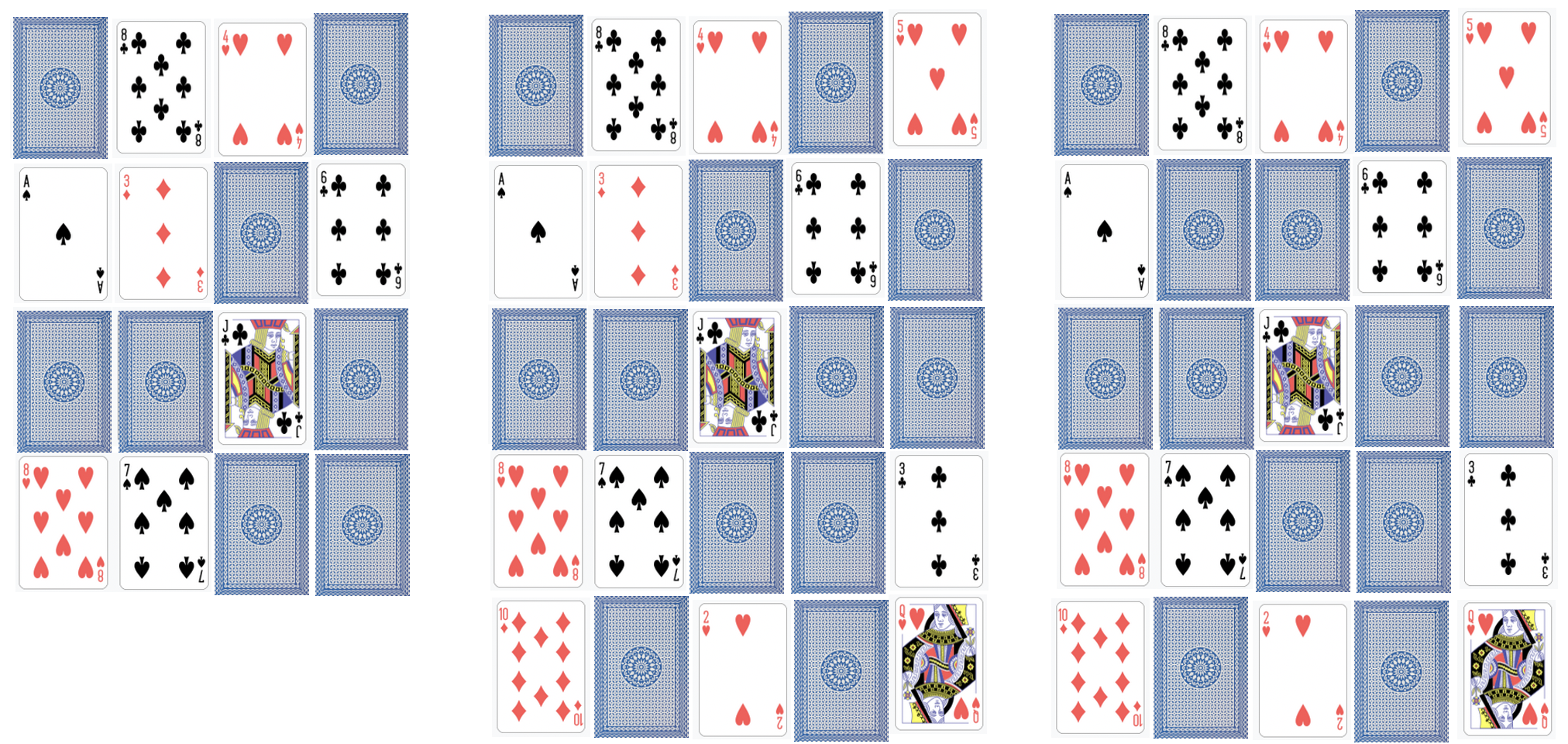
Playing cards by Dmitry Fomin, via Wikipedia (cards’ images released into the public domain, CC0). Back of playing card image by Michael Schwarzenberger from Pixabay. Composite created by Jo Brodie for CS4FN.
You could demonstrate the parity checking (that we did above with 1s and 0s) as a card trick – you just need an assistant and an audience. If you look closely at the pattern of cards in the picture above, and the pattern of 1s and 0s further up in this post you might notice a similarity…
Give a pack of shuffled cards to an audience member and ask them to deal out 16 cards in four rows either face up or face down (their choice). An example is shown in the left of the picture above. Tell them that in a moment you’re going to ask them to turn over a card while you’re not looking and later, you’ll tell them which card they flipped over. Announce that your assistant is going to make it ‘even harder’ by adding an extra column and row (I bet you can see where this is going). Of course, your assistant is adding a parity bit to the rows and columns (but your audience doesn’t know that) – an example is shown in the middle picture above.
Now avert your eyes (or get someone to blindfold you) and ask the audience member to turn over one card from the grid without telling you which. (Example in the picture on the right, above).
When you look at the grid you can quickly work out which one has been turned over, using exactly the same method we used with the 1s and 0s above.
This trick is a variation of one invented by New Zealand computer scientist, Tim Bell, and you can find more information about it and detailed instructions (as well as ideas to make it seem like you’re really a magician) in our free booklet called The Magic of Computer Science: card tricks special. The trick is called ‘The Out of Body Experience‘ and you can find it on pages 24-31 (pages 13 – 16 of the 33 page PDF).
The creation of this post was funded by UKRI, through grant EP/K040251/2 held by Professor Ursula Martin, and forms part of a broader project on the development and impact of computing.
Each day throughout December (until Christmas Day) we’ll be publishing a computing-themed blog post suggested by the picture on the front of our Advent Calendar. Today’s image on the door of the CS4FN Christmas Computing Advent Calendar is a Christmas wreath which made me think of wires and of weaving.
A Christmas wreath. Image drawn and digitised by Jo Brodie.
You might remember that our first advent calendar post was about the links between coding and knitting. Today’s post looks at an even more literal version of that: core rope memory.
1. Core rope memory: the Apollo space mission’s woven computer memory
by Jo Brodie, QMUL.
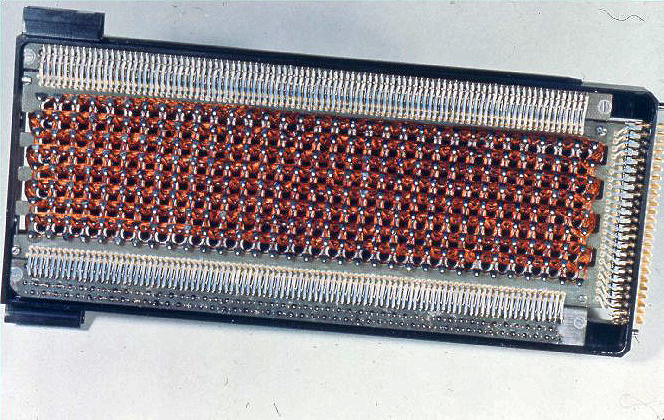
Firstly it looks like this.
Rope memory from the Apollo Guidance Computer. Image by NASA from Wikipedia, in the Public Domain.
Secondly it got us to the Moon!
Probably the world’s first portable computer
Core rope memory was made up of small ‘eyelets’ or beads of metal called ferrite that can be magnetised (these ring-shaped magnets were known as cores) and copper wire which was woven through some of the eyelets but not others. An electrical current passing through the wires made the whole thing work. A wire that passed through an eyelet would be read as a binary 1 when the current was on but if it passed around one then it would be read as 0. This meant that a computer program, made up of sequences of 1s and 0s, could be permanently stored by the pattern that was woven. This formed the ‘fixed’ read-only memory in the Apollo guidance computer system; a different configuration (using smaller cores) made up its erasable magnetic-core memory.
This type of memory was woven in the 1960s for NASA’s Apollo moon mission by women who were skilled textile workers. They would work in pairs and use a special hollow needle to thread the copper wire through one magnetic core and then the other person would thread it back through a different one, following instructions from another program which indicated which of the eyelets to use.
That program was first developed on a computer (the sort that took up a whole room back then) and then translated into instructions for a machine which helped the weavers get the wire threads into the correct position. It was very difficult to undo a mistake so a great deal of care was taken to get things right the first time, especially as it could take up to two months to complete one block of memory. Some of the rope weavers were overseen by Margaret Hamilton, one of the women who developed the software used on board the spacecraft.
Margaret Hamilton standing next to listings of the software that she and her MIT team produced for the Apollo Project. Image from Wikipedia (in the public domain).
Several of these pre-programmed core rope memory units were combined and installed in the guidance computers of the Apollo mission spacecraft, to fly astronauts safely to the Moon and back.
NASA needed on-board guidance systems to control the spacecraft independently of Mission Control back on Earth. They needed something that didn’t take up too much room or weigh too much, that could survive the shaking and juddering of take-off and background radiation – core rope memory fitted the bill perfectly.
It packed a lot* of information into a small space and was very robust as it could only break if a wire came loose or one of the ferrite eyelets was damaged (which didn’t happen). To make sure though, the guidance computer’s electronics were protected by being sealed from the atmosphere. They survived and worked well, guiding the Landing Modules safely onto the Moon.
*well, not by modern standards! The guidance computer contained only around 70 kilobytes of read only memory.
2. A brief history of the digital revolution, part 1: from birth to the moon
by Lewis Dartnell. This post is from 2008.
The Royal Institution Christmas Lectures 2008 invited you on a high tech trek to build the ultimate computer. The Christmas Lectures talk a lot about the current cutting-edge of computer technology, but what were things like in the early days of the digital revolution? The researcher for the 2008 Christmas Lectures, Lewis Dartnell, takes us through the story.
Electronic computers have come a long way since their birth only 50 years ago. One of the very first digital computers was built at the University of Manchester, a prototype called Manchester Mark I. The machine was revolutionary, with its complex processing circuits and storage memory to hold both the program being run and the data it was working on. The Mark I was first run on 21 June 1948 and paved the way as a universal computer that is truly versatile and can be reprogrammed at will, rather than being hard-wired for a single particular task.
A vacuum-tube (specifically a voltage-regulator tube) in use. Image by VA7IS from Wikipedia (released into the public domain).
These earliest computers used technology called vacuum tubes, which were essentially just like filament light bulbs. Because they get so hot, such vacuum tubes were really power hungry and not very reliable. Typically, computers like the Manchester Mark I, processing using vacuum tubes, could only be run for a few hours at a time before one of the vacuum tubes broke and had to be replaced. The biggest break-through in modern computing came with the invention of the transistor, a small electronic component that can perform the same function as a vacuum tube, but is much more energy efficient and reliable. The beauty of the transistor is that computer scientists found ways of making them smaller and smaller, and to connect a number of them together into a single miniaturized processing board called an integrated circuit. These came to be known as microchips, and form the basis of all the computers made today.
A major drive for the development of microchip technology was the Apollo programme, begun in 1961 to land humans on the Moon. Although the vast majority of the complex calculations to do with plotting the trajectory and navigating to the moon were performed by enormous banks of computers back on Earth, it was crucial for the spacecraft to have their own on-board computer system. This was called the Apollo Guidance Computer (AGC), and both the command module and the lunar module, which actually made the descent to the surface of the moon, had one each. These ground-breaking computers provided the astronauts with crucial flight information, helped them make course corrections and to touch-down gently on the moon’s surface. Because it’s absolutely crucial to reduce the amount of mass and power usage on a spacecraft as far as possible, developing these guidance computers really pushed the technology in miniaturising integrated circuits.
The Display and Keyboard Interface (known as DSKY and pronounced Disky) of the Apollo mission’s guidance computer. Image by Brandrodungswanderfeldhackbau from Wikipedia (released into the public domain).
The Apollo Guidance Computer not only helped drive the early development of microchips, but it also suffered one of the most infamous computer crashes in history. During the descent down to the Moon’s surface the AGC started displaying two error messages that the two astronauts, Neil Armstrong and Buzz Aldrin, weren’t familiar with. Engineers back at mission control on Earth quickly tried to identify the error code, and what it might mean for the lunar landing. Something that had never happened in any of the training simulations was now overloading the flow of data into the computer, the first time it had ever been used for real. Time was running out with only a limited amount of rocket fuel on-board and the Moon rushing up towards them. Luckily the computer entered a fail-safe mode, aborting low-priority calculations but able to continue with the critical tasks for the landing.
It wasn’t until the investigation afterwards that it was realized just how lucky Neil Armstrong and Buzz Aldrin had really been. The root of the problem was that the real attempt at the Moon landing was the first time an important radar system had been plugged into the computer, sending data into the AGC that wasn’t needed for the landing. This almost totally overloaded the computer, but by amazing luck, the amount of spare processing power built into the system for safety was almost exactly the amount being wasted by the un-needed radar, and the AGC didn’t crash completely.
3. Activity 1 – make your own core rope memory
A nice craft activity is to create a cut-down version with beads and coloured threads. You string 8 beads (with a gap between them) on one thread to form a single ‘byte’ (of 8 binary bits). Then think of a short word or name. Using one piece of thread for each letter (easier to see if threads are coloured but not essential) you can weave it through or around each bead according to the binary code for each letter. If the thread goes through the bead that’s a 1, around the bead is 0.
To make the capital letter A (01000001, according to the conversion from binary to letters table) you’d go around the first bead, through the second, then around all the other beads until going through the eighth bead.
My name’s JO so mine would have only three threads (one to hold the 8 beads and two to spell my name). One of my threads would go around, through, around, around, through, around, through, around to ‘spell’ the capital letter J (01001010). Let’s hope you have a slightly longer name!
4. Activity 2 – create an origami laurel wreath
Not only do we have a wreath-themed activity in our back catalogue (!) but in a delightful coincidence this story also relates to Apollo (the Greek god). If you’re wondering what origami might have to do with computing it’s just another way of looking at algorithms and instructions. Also, decomposition (breaking a problem into smaller parts) because you can re-use the instructions needed for the laurel wreath to make other origami items. We like using ‘unplugged’ activities like this to demonstrate computing concepts.
Create an origami laurel wreath from nested triangles of paper. Image by Paul Curzon / CS4FN.
The creation of this post was funded by UKRI, through grant EP/K040251/2 held by Professor Ursula Martin, and forms part of a broader project on the development and impact of computing.
Every day from the 1st to the 25th of December this blog is publishing a Christmas Computing post, as part of our CS4FN Christmas Computing Advent Calendar. On the front of the calendar for each day is a festive cartoon which suggests the post’s theme – today’s is a star, so today’s post is about finding your way: navigation.
Follow that star… Image drawn and digitised by Jo Brodie.
In modern cities looking up at the night sky is perhaps not as dramatic as it might have been in the past, or in a place with less light pollution. For centuries people have used stars and the patterns they form to help them find their way.
There are many ways our explorations of space have led to new technologies, though satellites have perhaps had the most obvious effect on our daily lives. Early uses were just for communication, allowing live news reports from the other side of the world, with networks that span the globe. More recently GPS – the Global Positioning System has led to new applications and now we generally just use our phones or satnav to point us in the right direction.
The very first computers
by Paul Curzon, QMUL.
Victorian engineer Charles Babbage designed, though never built the first mechanical computer. The first computers had actually existed for a long time before he had his idea, though. The British superiority at sea and ultimately the Empire was already dependent on them. They were used to calculate books of numbers that British sailors relied on to navigate the globe. The original meaning of the word computer was actually a person who did these calculations. The first computers were humans.
Babbage became interested in the idea of creating a mechanical computer in part because of computing work he did himself, calculating accurate versions of numbers needed for a special book: ‘The Nautical Almanac’. It was a book of astronomical tables, the result of an idea of Astronomer Royal, Nevil Maskelyne. It was the earliest way ships had to reliably work out their longitudinal (i.e., east-west) position at sea. Without them, to cross the Atlantic, you just set off and kept going until you hit land, just as Columbus did. The Nautical Almanac gave a way to work out how far west you were all the time.
Maskelyne’s idea was based on the fact that the angle from the moon’ to a person on the Earth and back to a star was the same at the same time wherever that person was looking from (as long as they could see both the star and moon at once). This angle was called the lunar distance.
The lunar distance could be used to work out where you were because as time passed its value changed but in a predictable way based on Newton’s Laws of motion applied to the planets. For a given place, Greenwich say, you could calculate what that lunar distance would be for different stars at any time in the future. This is essentially what the Almanac recorded.
Now the time changes as you move East or West: Dawn gradually arrives later the further west you go, for example, as the Earth rotates the sun comes into view at different times round the planet). That is why we have different time zones. The time in the USA is hours behind that in Britain which itself is behind that in China. Now suppose you know your local time, which you can check regularly from the position of the sun or moon, and you know the lunar distance. You can look up in the Almanac the time in Greenwich that the lunar distance occurs and that gives you the current time in Greenwich. The greater the difference that time is to your local time, the further West (or East) you are. It is because Greenwich was used as the fixed point for working the lunar distances out, that we now use Greenwich Mean Time as UK time. The time in Greenwich was the one that mattered!
This was all wonderful. Sailors just had to take astronomical readings, do some fairly simple calculations and a look up in the Almanac to work out where they were. However, there was a big snag. it relied on all those numbers in the tables having been accurately calculated in advance. That took some serious computing power. Maskelyne therefore employed teams of human ‘computers’ across the country, paying them to do the calculations for him. These men and women were the first industrial computers.
Before pocket calculators were invented in the 1970s the easiest way to do calculations whether big multiplication, division, powers or square roots was to use logarithms (not to be confused with algorithm). The logarithm of a number is just the number of times you can divide it by 10 before you get to 1. Complicated calculations can be turned in to simple ones using logarithms. Therefore the equivalent of the pocket calculator was a book containing a table of logarithms. Log tables were the basis of all other calculations including maritime ones. Babbage himself became a human computer, doing calculations for the Nautical Almanac. He calculated the most accurate book of log tables then available for the British Admiralty.
The mechanical computer came about because Babbage was also interested in finding the most profitable ways to mechanise work in factories. He realised a machine could do more than weave cloth but might also do calculations. More to the point such a machine would be able to do them with a guaranteed accuracy, unlike people. He therefore spent his life designing and then trying to build such a machine. It was a revolutionary idea and while his design worked, the level of precision engineering needed was beyond what could be done. It was another hundred years before the first electronic computer was invented – again to replace human computers working in the national interest…but this time at Bletchley Park doing the calculations needed to crack the German military codes and so win the World War II.
The creation of this post was funded by UKRI, through grant EP/K040251/2 held by Professor Ursula Martin, and forms part of a broader project on the development and impact of computing.
We’re doing a post a day for Advent 2025 with a mix of newer articles and ones from our extensive CS4FN (Computer Science For Fun) archives. CS4FN has been going since 2005 and we have hundreds of articles to choose from, on a huge variety of topics.
We hope you’re enjoying our daily posts and if you’ve missed any just scroll to the end to catch up with the full set.
Today is Day 20 of the CS4FN Christmas Computing Advent Calendar and the picture today is a gift tag, which is a way of addressing a gift. So today’s post is all about internet addresses.
A festive gift-tag. Image drawn and digitised by Jo Brodie.
The @ symbol of your email address first appeared in the Middle Ages. Monks would translate and copy books, but there were often problems when the bookbinders put the pages together in the wrong order. To get round this the monks repeated the last line of each page on the top of the next. This was very laborious so they came up with quick abbreviations even for small but common words like “ad”. It is Latin for “at” or “to”, and the medieval monks sometimes wrote ‘d’ like a mirrored ‘6’. The @ symbol was born. Morse code was updated in 2003 with a special code for @ (•–•-•) so that people could send email addresses by Morse code!
2. La Chiocchiola pasta
by Jo Brodie, QMUL.
In 1999 an Italian pasta company decided to create a pasta shape to celebrate the humble @ symbol. “@” had already been in use in email addresses for several decades (since the 1960s) but was becoming more popular as the use of email expanded and spread beyond businesses, the military and academia (universities etc).
The ‘cyberpasta’ was called “La Chiocchiola” which is the Italian word for snail and you can probably see why they use that word to describe the similarly-shaped symbol. The pasta was awarded a prize from the National Museum of Pasta in Rome where samples of the @ shape were displayed and also given away free. Thanks to the Internet Archive you can even see a copy of the English language version of the pasta company’s website from May 1999 (only a few months after Google was founded).
3. Do @ me
by Jo Brodie, QMUL.
We can thank Ray Tomlinson for the earliest use of the @ symbol to separate an individual computer use from the network they’re using, and to act as an addressing system. Millions of people use Gmail and have an email address ending in gmail.com but (generally) each one gets only their own messages thanks to whatever unique set of letters and numbers is in front of the @. He chose the symbol because it’s a character that never appears in people’s name so could be used as a marker to separate the person from the machine or network. This neat and simple solution made it possible for people to send email anywhere in the world.
Further reading
How does email work? (31 May 2021) Namecheap – a detailed guide to what happens after you press SEND.
Type any web address like www.google.com into a browser address bar, press enter and that address is instantly converted behind the scenes into a series of numbers.
The web address is known as a domain name and it’s an easy to remember version of the website’s address. The series of numbers is called the IP address (which stands for Internet Protocol). The human-readable domain name is translated into the machine-readable IP address by the DNS (Domain Name System) which acts as the internet’s ‘address book’. A DNS server can ‘look up’ the domain name in a list and find the corresponding IP address.
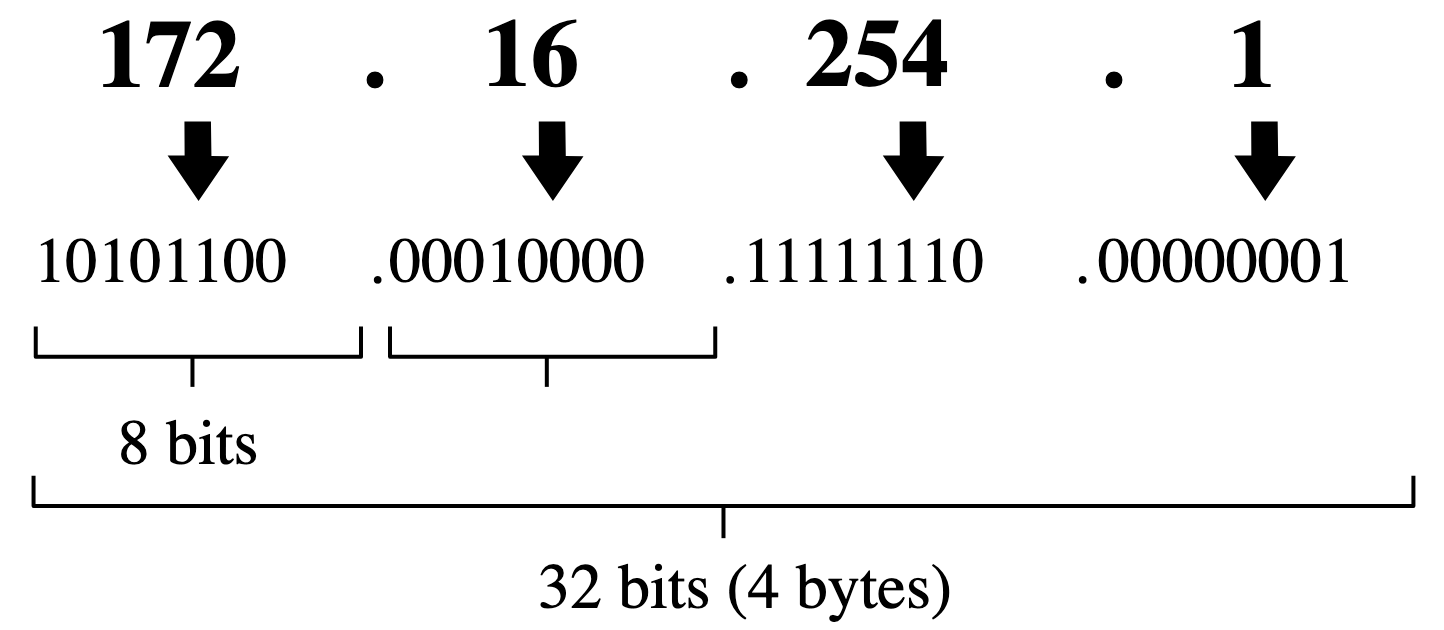
Everything that is connected to the internet has its own IP address including smartphones, laptops, networked printers etc and IP addresses have been in use for decades, helping direct traffic around the internet. We don’t usually see these IP addresses (we don’t generally need to!) but they look like a string of digits chunked into 4 groups, for example 198.51.100.0.
Each of those four ‘chunks’ is actually represented by an 8-digit binary number (or ‘octet’), so the range of each 8-digit octet goes from 00000000 (zero) to 11111111 (255). As 11111111 is the largest 8-digit binary number possible, no chunk can be above 255.
There are four octets (each containing 8 digits) in an IP address
Each of the octets can range from 00000000 to 11111111 (represented by 0 to 255)
Every IP address is therefore made up of a string of 32 (4 octets x 8 digits) ones or zeroes in a particular combination.
This means that there are 232 (two to the power of 32) possible IP address combinations giving an enormous number of over 4 billion addresses (which can be written as 4,294,967,296 or 4.294967296 × 10⁹). Note that it’s “2” because in binary it’s either a 1 or a 0.
You might think that this would give us plenty of addresses to be going on with, but no! It was predicted that as more devices were connected to the internet, as its use expanded, we’d eventually start to run out and sure enough in 2011 we actually began to run out of these 32-bit addresses. Fortunately a new internet protocol (version 6, so it’s IPv6) was developed that uses 128 bits, which means there’s now a possible 2128 variations, giving an even more enormous number of 3.402823669 x 1038 addresses. Well, that should keep us going for a while!
Example IP address diagram by unknown author (from Wikimedia Commons). The copyright holder has placed this image into the public domain (CC0).
Smart electricity meters are clever meters that are connected to the Internet so they can send data back to the power company about your minute by minute electricity usage for billing purposes. If burglars could get hold of data from a smart electricity meter they can tell whether you are in or not.
How could anyone other than the power company get the data though? A German research team led by Dario Carluccio decided to see if it was possible. They have shown that the data from at least one kind of smart meter can be intercepted by anyone with the right software. Data needs to be encrypted – transmitted using an uncrackable code – to be safe from prying eyes. For the smart meter they examined that wasn’t done securely. They could not only intercept the data, they could even tamper with what was sent back to the company, which could be used, for example to lower their bills. All you needed was what is known as the ‘MAC address‘ of the smart meter. A MAC address is just the unique network name that a computer uses to identify itself- all computers connecting to the Internet have one. Unless special security is used any computer can pretend it is some other computer just by using the target computer’s MAC address when asked to identify itself. With the smart meter to send bogus data you essentially just need to get another computer to use the smart meter’s MAC address before sending data. The researchers demonstrated this by change the electricity usage data in a way that made the graph of peaks and troughs of usage read the message “U have been hacked”!
(A device’s MAC address is used locally, to identify it to your home broadband whereas the IP address identifies your device to the internet so that it can receive information from anyone, anywhere).
The creation of this post was funded by UKRI, through grant EP/K040251/2 held by Professor Ursula Martin, and forms part of a broader project on the development and impact of computing.
It’s Day 19 of the CS4FN Christmas Computing Advent Calendar. Every day throughout Advent we’ll be doing our best to publish a computing-themed post that relates to the picture on the advent calendar’s door. If you’d like to judge how well we’ve done please scroll to the end of this post where we have a full list of our attempts on Days 1 to 18 in the panel with the Christmas tree.
Jingle bells, warning you of festive scams. Image drawn and digitised by Jo Brodie.
Gone Phishing
Fake emails or text messages asking for bank details including passwords is known in the trade as ‘Phishing‘ – it’s an example of social engineering, in which someone tries to manipulate someone else into giving away information. Like fishing the criminals scatter lots of bait and once in a while someone bites on the hook and replies. Criminals have even created fake Internet banking sites, direct copies of the real sites, in an attempt to scam customers’ details. This type of crime would never have been possible before computers. Few criminals would have the ability or funds to build a fake copy of your bank in the high street, but they can write programs to simulate them online.
Scammers love Christmas. It’s the perfect time of year to try and extract money or information (or both) from frazzled, busy and distracted Christmas shoppers.
“We’re sorry we missed you”
This popular phishing scam will come via text, saying that there’s a problem with delivering your item and you need to pay some small amount of money to rearrange delivery.
In the run up to Christmas so many people are expecting deliveries so this scam is successful because even if only a small percent of people fall for it that’s still a lot of people. The text message will contain a link that looks like it’s for the genuine web address of a delivery company where you might already have an account. But… the link’s taken you to the scammer’s replica website in the hope that you hand over your login information and possibly your bank card details to pay. The scam is quite subtle as once you fill in your details and press send you are then redirected to the genuine company’s website, so it’s easy to miss what’s happened at first.
How to stay safe: were you expecting this text message? If not, be alert. Look at the link carefully – does it seem correct? If it seems fake you can forward the message from any mobile phone to 7226 (which spells SPAM on your keypad). Learn about scams (See further reading) and tell people about them so they know what to watch out for.
See how well you do on Google’s Phishing Quiz (you can make up a fake email address to use) – some are genuine, some are trying to steal information. Can you spot which is which?
Screenshot from Google’s Phishing Quiz (c) Google.
Some phishing attempts are a bit more involved. You might get a phone call from someone claiming that ‘bad people’ have ‘got into your internet’ and you need to take immediate action to prevent being cut off. Sometimes the scammers pretend to be from a well-known computer company (such as Microsoft) or from the company that provides you with your broadband internet.
Sometimes they’ll try and engage you in conversation – this is ‘social engineering’. This is a to try and gain your trust while keeping you anxious that something has gone wrong and which they are going to help you with. They may even use some tricks to convince you they’re legitimate. If you use a Windows computer they might ask you to open up the Event Viewer and count the errors, suggesting that there’s a problem (in reality it’s all pretty normal and harmless).
The next thing they might want you to do is to download some ‘desktop sharing’ software onto your computer. The software is real enough (and can be used genuinely to help people) but in this case they want to be able to access your computer and cause havoc. What they probably want to do is see if you have online banking (so they can steal your money) or they might delete some important files and say they’ll give them back only if you pay them. Don’t let them in!
How to stay safe: you can just hang up! Definitely don’t download any software, don’t visit any links they suggest you go to and don’t give them any information.
This ‘friend in need’ scam will likely come via WhatsApp. Someone pretending to be a family member or friend gets in touch claiming they’re contacting you from a new phone after their old one was lost or stolen. They then claim they need money for some urgent reason and ask you to send them some via online banking.
This scam relies on people’s kindness and goodwill, and not wanting to be seen to be stingy or unhelpful, but sadly it causes thousands of pounds to be stolen and it’s often very difficult to recover that money.
How to stay safe: be suspicious. Try and contact your friend / family member in another way to check it’s really them. Or do a bit of social engineering yourself – make up something and ask them about it. Rather than admit they don’t know about it they’ll probably answer ‘yes’ and give themselves away!


























 cs4fn
cs4fn 